You can import your entire Liondesk contact database and notes directly into Follow Up Boss. Let's get started!
Need Help? Email your contact and contact notes files to imports@followupboss.com, and we can assist! To learn more about how Follow Up Boss importing works, check out our Importing Overview.
Moving Your Database
1. Export your Contact & Contact Notes files from Liondesk (step by step instructions)
2. Import your Contacts to FUB
3. Import your Contact Notes to FUB
Importing your LionDesk contact notes files will add contact comments and outbound click-to-call notes to each contact.
Note: Outbound click-to-call notes will be imported as a note with "Call Note" to indicate its type.
4. Your import is complete! To view past imports, go to Admin > Import > View Past Imports.
FAQs
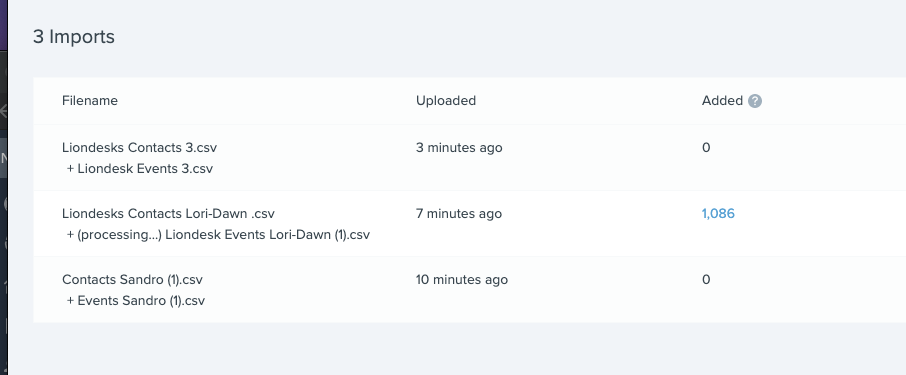
We remove all associated contacts and contact notes imported from the two files when you delete an import. This includes removing any notes imported that were added to any existing leads in Follow Up Boss.

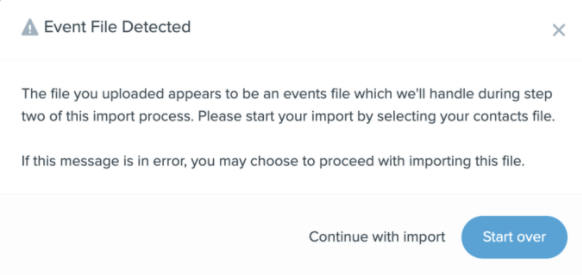
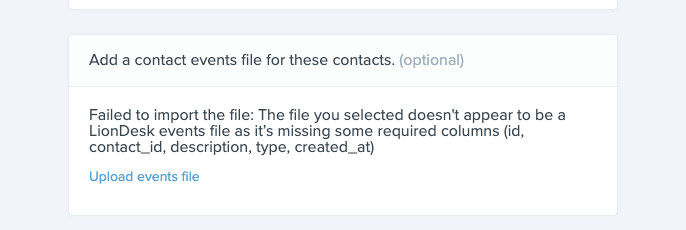
This can happen if you upload your contact notes file first instead of your contacts. Please start your import over and select your contacts file first. We'll import your contact notes file in Step 2.