
The Deals Leaderboard brings your team’s wins to life with a real-time sales dashboard that celebrates success and showcases the hard work behind every closed deal. Forget manual updates and outdated whiteboards. Your deals leaderboard is always current and ready to view right inside Follow Up Boss.
Note: The Deals Leaderboard is available on Pro and Platform plans.
Overview
The Deals Leaderboard shows how individuals rank based on the total value of their closed deals. Results reflect deals in the selected pipeline(s) that are marked as closed during the selected timeframe.
Accessing the Deals Leaderboard
The leaderboard is located under Reporting > Leaderboard > Show Me Deals Leaderboard.
Setting up the Deals Leaderboard
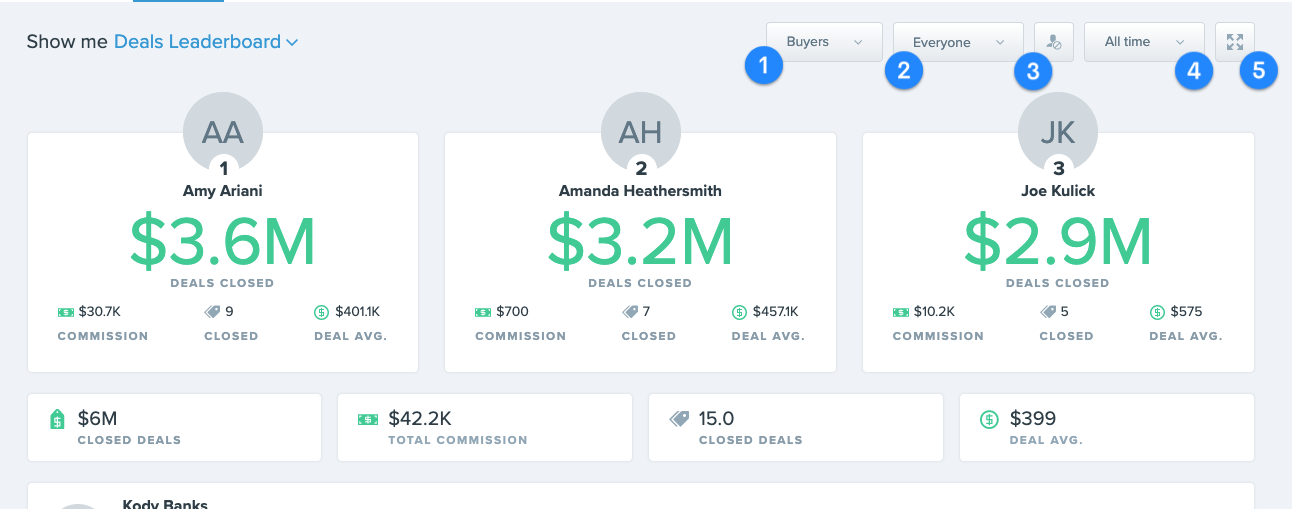
- Pipeline Selector: Choose to show all pipelines or a specific pipeline for the leaderboard.
- Everyone Selector: Choose the individual or team to display on the leaderboard.
- Exclude Individual: Choose anyone that you don't wish to show on the team, such as a team lead.
- Time Frame: Choose a timeframe for the leaderboard to use for the leaderboard.
- Choosing This month, This year, Year To Date, or All-Time will use today's date as the end-time selector to capture only deals that have closed for reporting.
- Fullscreen: Selecting this will switch the leaderboard into a fullscreen mode for display on a TV.
FAQs
A Deal is considered Closed when the deal has a Close Date that fits in the timeframe selected for the board and the deal is in the stage marked as the close stage in Deals Tracking.
Selected Pipeline must have a Stage marked as closed in order for it to display properly on this leaderboard. You can check your Pipeline stage by navigating to the Deals section and looking for the closed indicator in the Pipeline you are wanting to set up.
1. Go to Deals > Hover your house next to the desired Deal Stage > Edit
2. Select Mark deals in this stage as closed for reporting > Save Stage